
Import
Manually upload files into your Indicate warehouse without setting up a pipeline or integration. Use Import for one-time datasets, legacy data, or any source system that does not offer an API.
What is Import?
Import lets you manually upload data files directly into your Indicate warehouse, no pipeline or integration needed. It’s the fastest way to bring in a one-time dataset or supplement your existing data.
Supported formats: CSV (currently available), Parquet and JSON coming soon
All imports are append-only meaning that data is added to the target table without replacing existing rows
Imports cannot be undone
Imports are append-only by design. Once data is written into a table, you cannot delete or update rows through Import. This is part of our data philosophy: your warehouse is a reliable, traceable record of what was uploaded and when.
Before you upload, double-check:
The correct warehouse and target table are selected
The CSV schema (column names, order, data types) matches the target table
The data in the file is clean and ready to live in your warehouse
If you upload to the wrong table or with incorrect data, the rows will stay there. There is no "undo" button.
How to import data
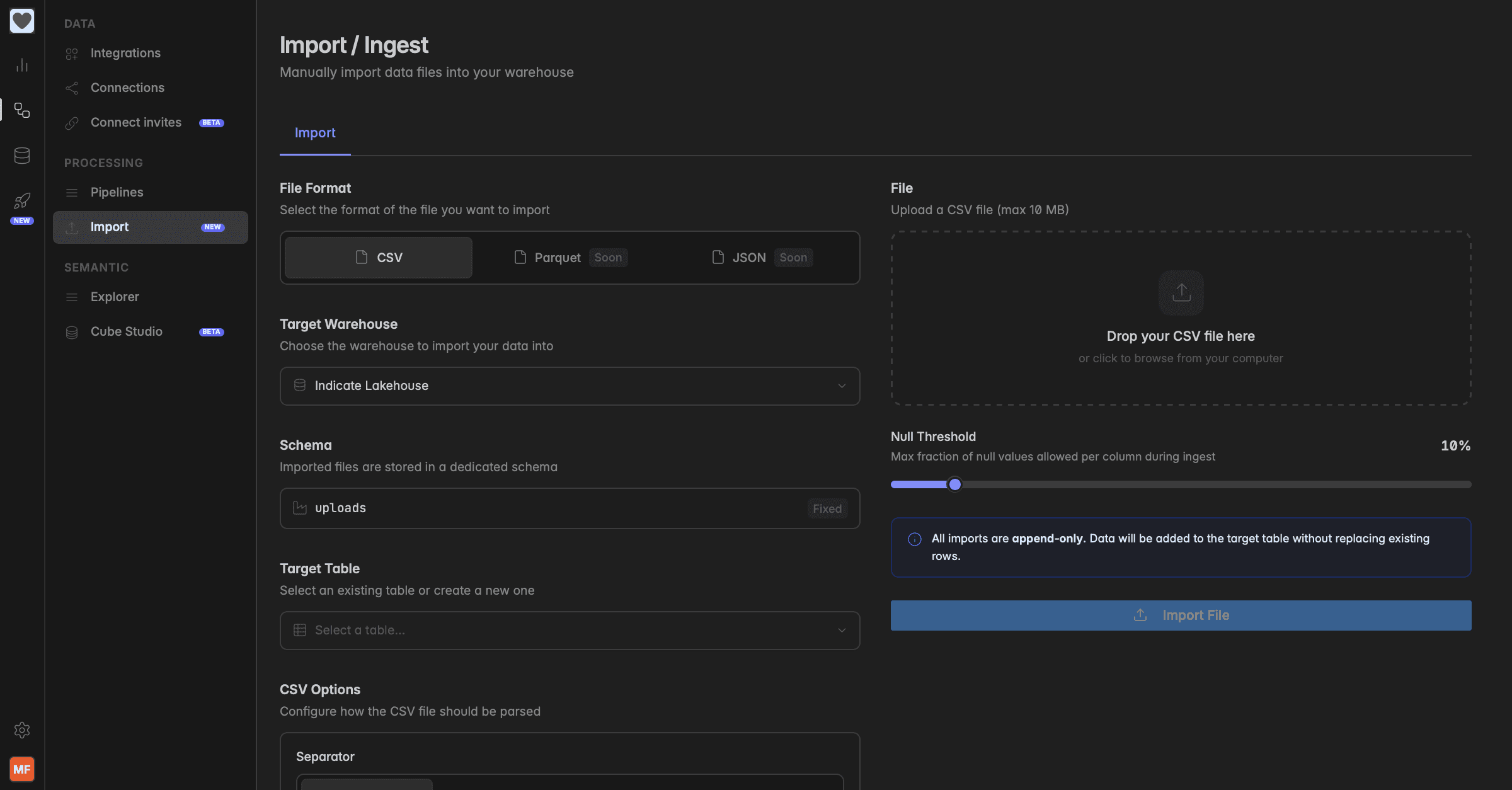
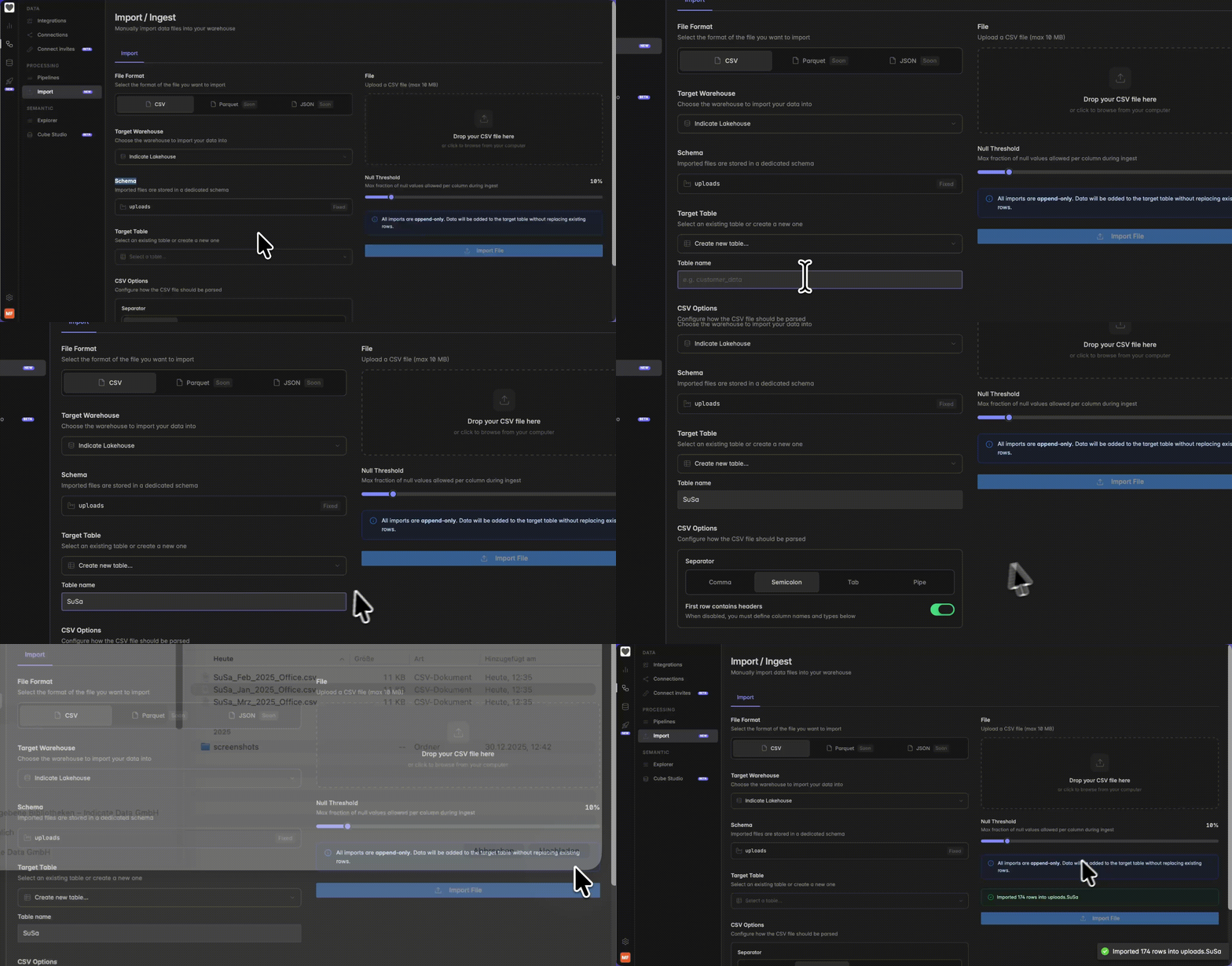
Go to Engineering → Processing → Import. Configure all settings below, then click Import File to start the upload.
Choose a file format
Select the format of the file you want to import. Currently, CSV is the only available format. Parquet and JSON support are coming soon.
Upload your file
Drag and drop your CSV file into the upload area on the right, or click it to browse from your computer. The maximum file size is 10 MB.
Select target warehouse and table
Choose which warehouse to import your data into (e.g. Main Indicate Lakehouse). Imported files are always stored in the dedicated “uploads” schema, this cannot be changed. In the Target Table field, either select an existing table from the dropdown or type a new name to create one on import.
Configure CSV options
Configure how your CSV file should be parsed. Two options are available:
Separator: Choose the delimiter used in your file → Comma, Semicolon, Tab, or Pipe. Comma is selected by default.
First row contains headers: When enabled (default), Indicate uses the first row as column names. When disabled, you must manually define each column name and data type in the Column Definitions section below.
Column Definitions
This section only appears when First row contains headers is disabled. You must manually define each column in your CSV file by entering its name and selecting its data type. Use the + Add button to add more columns. Available data types are: VARCHAR, TEXT, INTEGER, BIGINT, DOUBLE, FLOAT, BOOLEAN, DATE, and TIMESTAMP.
Set the Null Threshold
Use the slider to set the maximum fraction of null values allowed per column during ingestion. The default is 10%. If a column in your file has more null values than this threshold, the import will be rejected to protect data quality. Increase the threshold if your data has many empty values in a column.Why this matters: null is not zero
A null value means "no data", while 0 is an actual measured value. This distinction becomes critical when you calculate metrics later:
With nulls: Empty cells are excluded from calculations. An average is calculated only over the rows that actually have a value.
With zeros: Empty cells are treated as real measurements of 0. They are included in calculations and pull averages, sums, and other aggregations down.
Example: You import revenue for 10 days. On 3 days the field is empty.
If those 3 days stay null, the average revenue is calculated over the 7 days with actual data.
If those 3 days are imported as 0, the average is calculated over all 10 days, and your reported revenue per day will be artificially low.
Rule of thumb: Leave empty cells as null when the value is genuinely unknown or not applicable. Only use 0 when zero is the actual measured outcome (e.g. "0 bookings on this day" really means no bookings happened).
When to adjust the threshold
Lower the threshold (e.g. 5%) for critical fields where missing data should block the import.
Raise the threshold (e.g. 30%) when your data legitimately has many empty cells, for example optional fields or sparse event data.
Start the import
Once all settings are configured, click the “Import File” button. Indicate will validate the file, check the null threshold, and load the data into the target table in the uploads schema of your warehouse. The import runs immediately and data is available as soon as the process completes.
Find your uploaded data
After the import completes, you can find your uploaded data in Data Studio under the uploads folder. Open it to see the table you just created.
Every additional CSV you import into the same table will be appended to it. Just select the existing table from the dropdown in step 2 (Target Table) when uploading the next file, and the new rows will be added to the existing data.
Indicate does not deduplicate rows during import. If you upload the same CSV twice into the same table, the values will appear twice. Make sure to only upload each file once, or remove duplicates from your CSV before importing.
Recurring uploads to the same table
Import is not just for one-off datasets. Because imports are append-only, you can upload a new CSV into the same target table every day, week, or month, and the data simply gets added to what's already there.
This is ideal for data sources that are not available via API but produced on a regular schedule. Examples:
Accounting data that is finalized at the end of each month and exported as CSV
Weekly POS reports from a system without an integration
Daily exports from a legacy tool you cannot connect directly
Upload the new file into the existing target table and your dashboards, metrics, and AI Agent will automatically use the latest data. You don't need to update any widget, formula, or pipeline.
Tip: Use a clear naming convention in your CSV file (e.g. include a date column like
report_month) so you can filter or group by period in your dashboards later.
Schema evolution
Indicate handles schema changes between uploads automatically, so you don't have to recreate a table when your CSV structure changes slightly over time.
Here is what happens when a new CSV does not perfectly match the existing target table:
A column is missing in the new CSV → the missing column is filled with null for the new rows. It is not filled with 0, and the import does not fail.
A new column appears in the CSV → the new column is added to the table and appended to the right. Existing rows get null for that new column.
A column is renamed (e.g.
revenue→Revenue) → Indicate treats this as a brand new column. The old column stays, the renamed column is added separately. Both will exist in parallel in the table.A column's data type changes (e.g. INTEGER → DOUBLE) → Indicate creates a second column for the new type instead of casting. The original column keeps its old type.
Heads up: Renaming columns or changing data types between uploads creates duplicate columns. To avoid a messy table, keep your column names and data types consistent across all uploads to the same target table.
Troubleshooting
Import doesn't work for me.
Check whether your Indicate plan supports Import. You may need to upgrade to the Pro plan to use this feature.
Make sure you have admin rights in your Indicate workspace. Without admin permissions you cannot upload files into the warehouse. If you don't have admin rights, contact your workspace admin to grant them or to run the import on your behalf.
The import is rejected.
This usually happens when the file format or configuration doesn't match what Indicate expects. Common causes:
The CSV uses a different separator than the one selected (e.g. semicolon instead of comma)
Date or number formats are inconsistent across rows (mixed
01/02/2024and2024-02-01, or1.234,56and1234.56)Column data types in the file conflict with the target table (e.g. text values in a column defined as INTEGER)
The file has unescaped quotes, stray line breaks, or extra columns in some rows
The wrong target table or warehouse was selected
Review your CSV options (Step 4), the column definitions, and the file itself, then try again.
My data needs to be cleaned before upload.
Indicate writes your CSV into the warehouse as-is. Clean your data before uploading. Things to check:
Remove duplicate rows that should not appear twice in the warehouse
Ensure dates are in a consistent format (e.g. ISO
YYYY-MM-DD)Ensure numbers use the same decimal separator throughout the file
Decide consciously whether empty cells should be null or 0 (see Step 5)
Check that text columns don't contain stray line breaks, tabs, or unescaped quotes
Verify that column names match the target table if you are uploading into an existing one
I uploaded to a brand new table and noticed something is wrong. Can I start over?
Yes. While the table only contains data from a single test upload, you can drop the entire table from the warehouse and re-import a corrected file. This makes the very first upload a good moment to test your file structure, column types, and configuration.
Once you start uploading additional CSVs into the same table (the recurring upload pattern described above), individual rows can no longer be removed selectively. You can still drop the entire table including all of its rows, but you will lose every previous upload as well. That is why we recommend testing your structure on the first upload before committing to recurring uploads.
The schema of my CSV doesn't match the target table.
See the Schema evolution section above. Indicate handles missing or extra columns automatically, but renamed columns or changed data types will create duplicate columns. Keep your file structure consistent across uploads.
I uploaded the wrong file or wrong data.
You can drop the entire target table from your warehouse via the UI and start over with a corrected file. This is the easiest path if the table only contains a single bad upload.
If you have already uploaded several months of data into the same table (e.g. recurring monthly accounting uploads) and only one of those uploads is wrong, dropping the table means you also lose all the correct uploads. You can still do it and re-upload everything from scratch, but it gets tedious the more history you have built up. That is why we recommend testing your file structure on the first upload, before you start a recurring upload pattern.
Was this helpful?