
Add a data source
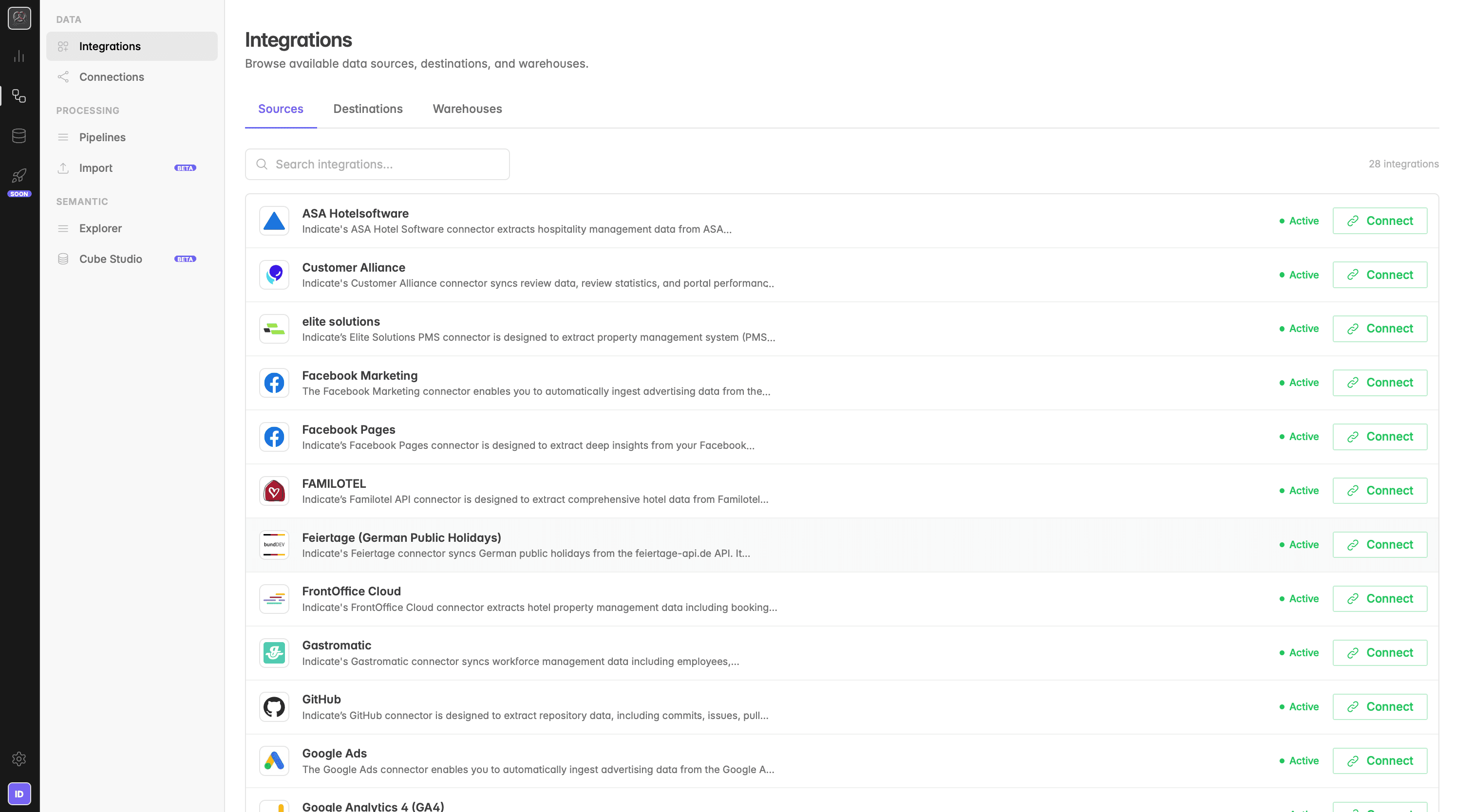
Data sources are systems you connect to bring data into Indicate. Connect sources to unify data and power analytics.
What is a Data Source?
A data source is any external system or application that Indicate can connect to, for example a PMS, a marketing platform, or a cloud database. Once connected, Indicate pulls data from it automatically, transforms it into a consistent format, and makes it available for dashboards, reports, and AI insights.
Examples of data sources: Google Analytics 4, Facebook Ads, Mews, ReGuest, HubSpot, custom databases.
It enables you to connect raw operational data into your analytics workflows.
It eliminates data silos by bringing disparate sources into a unified platform.
Here is a list of our current integrations: https://indicate-data.io/integrations
Why connect a data source?
Automated data collection: Stop pulling reports, exporting CSVs, and copying numbers into spreadsheets. Once a source is connected, Indicate fetches the data for you, on schedule, in the background.
No more manual data hunting: Your team no longer has to log into five different systems to put one report together. The data flows in automatically and stays up to date.
One place, one format: In the AI era, having all your data in one location and in a unified format is essential. AI tools, dashboards, and analyses are only as good as the data they can reach. A central, consistent data infrastructure makes your data usable across every tool you run.
More revenue, better decisions: A unified data foundation means you can compare performance across channels, spot what is actually driving results, and act faster. Better visibility leads to better decisions, and better decisions lead to growth.
Single source of truth: All your systems feed into one place, no more switching between tools or manual exports.
Richer insights: Combine data from multiple sources (e.g. revenue + marketing spend) to see what's actually driving results.
AI-ready: Once connected, your data is immediately available to the AI Agent for natural language queries.
Comparability: When every source flows into the same structure, comparing channels, time periods, or business units becomes straightforward instead of a manual reconciliation exercise.
More importantly, Indicate is built like a modular toolbox, where each component (data source, data destination, data products etc.) can be combined and re-combined in flexible ways. You pick the pieces you need and plug them together, giving you the freedom to build your own data architecture without being locked into a fixed template.
How to Connect a Data Source
Before you start
You need admin rights in your workspace
Credentials for the system you want to connect (admin login, API key, or OAuth access)
Permission in the source system to grant third-party access
When you connect a data source in Indicate, the authentication and connection method depends on the third party system you want to connect. Common methods include:
Login Credentials (Username & Password): Enter your user credentials (or a generated access token) so Indicate can connect directly to the system endpoint.
API Key or Token: Some systems support key/token-based authentication. Generate a token in the source system and insert it into Indicate instead of your password.
OAuth (Authorization Code Flow): For many SaaS tools or cloud platforms: you’ll be redirected to a login dialog, grant access permissions, and Indicate automatically receives an access token (and possibly refresh token).
Vendor/Enterprise Sales Requirement: For large enterprise systems or specialized data providers, you might need to contact the sales team first, to set up licensing, data-access agreements, after which you receive credentials or tokens to use in Indicate. In some cases the credentials are directly sent to Indicate.
Set up
Choose your integration in the marketplace
Identify the systems you want to connect (for example: Sales CRM, Marketing Automation).
Authenticate
Confirm access, credentials, network permissions, roles.
Go to
Engineering→Marketplacein Indicate and select the source you want to add.Connecting via API Token (e.g. PMS, CRM,..)
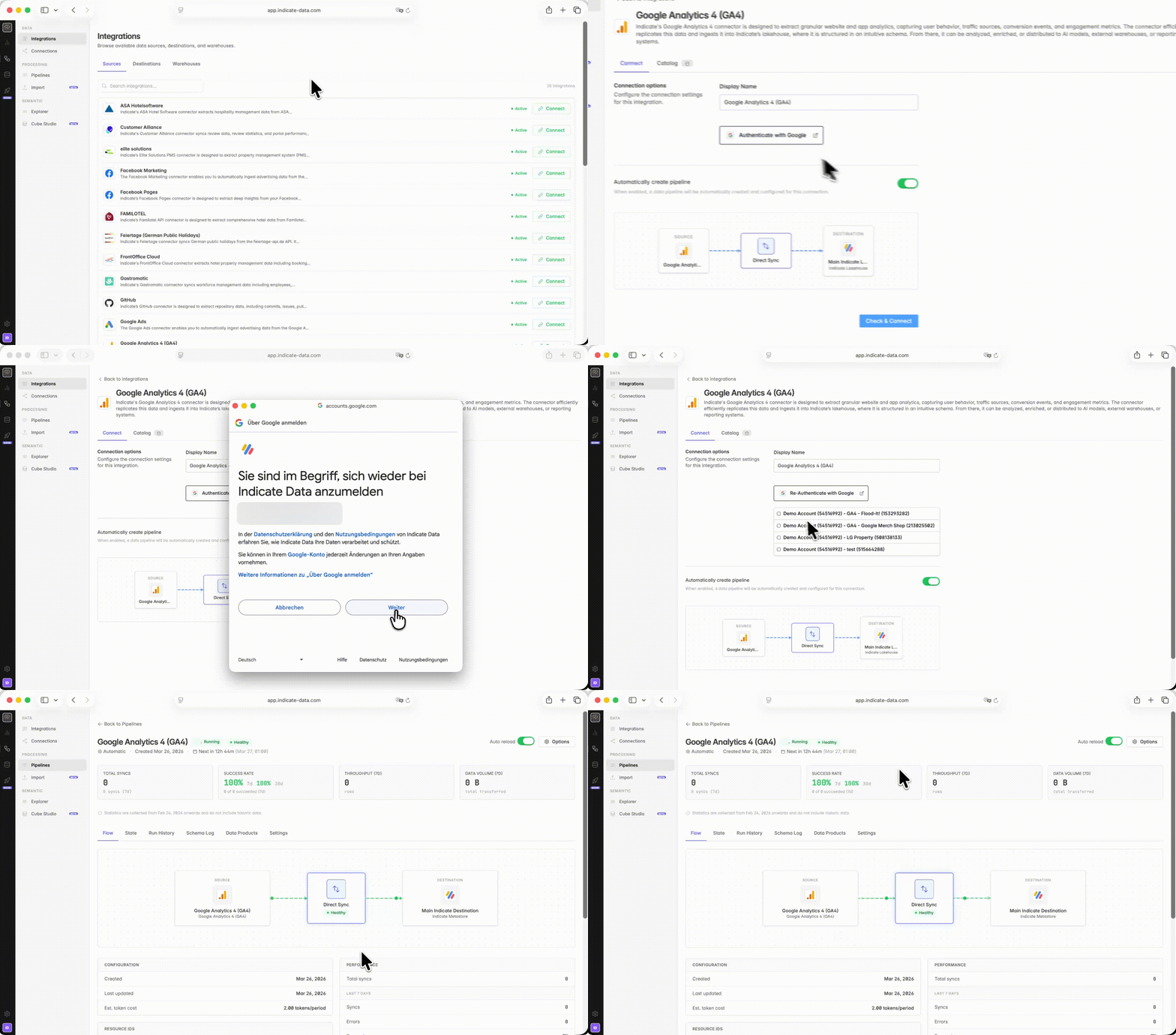
Connecting OAuth systems (e.g. Google, Facebook, Instagram,…)
Decide whether to include personal data (PII)
For many sources, you can choose whether to include PII (personal data). By default, PII is turned off. If you want personal data from your data sources to be moved and saved as well, turn the green toggle on.
Confirm the connection
Indicate automatically creates a pipeline to a destination connection when the green toggle is on. This is enabled by default. If you only want to save the connection without moving data, click the toggle to turn it off. The visual blocks show where data will move, from the source to the destination.
Use that source in a dashboard or widget within your modular setup, combine it with other components (AI, transformations, alerts, dashboards) to build your custom data stack.
You can connect the same source more than once. In fact as often as you want for all properties or customers of yours. If you connect the same source type more than once (e.g. two different Google Analytics properties), each counts as a separate connection slot. Check your plan limits under to
Settings→Billing→Current Plan→Pipelines→Included tokensto see how many slots you have available.
Troubleshooting
The source I need isn't in the list.
Check http://indicate-data.io/integrations for the full list. If your system isn't supported yet, contact us via our request and let us know if you'd be up for being a pilot when we integrate the new data source. It's important for us to ensure the data quality is excellent and the metrics are viable. Therefore, when we introduce a new data source, we ensure a deep quality control, for which we need access to the source system and are open to KPI wishes. We'd love to have you as a first mover if you suggest a new integration. We regularly add new integrations.
Authentication failed / OAuth error.
Make sure you're signing in with an account that has the necessary admin or API rights in the external source system. Some systems (e.g. Google) require you to grant specific permissions during OAuth. For certain APIs, you may need to contact the provider or their sales team first to enable access and obtain all required login details, and even if you can access the account, limited permissions can prevent some data from being transferred.
Admin Rights Required:
You must have administrator rights in your Indicate Data space to add or configure a data source. If you don't have the necessary permissions, contact your workspace admin to grant you access or to set up the connection on your behalf.
Connection Slots Are Limited by Plan:
The number of active source connections you can have depends on your chosen plan. Each connection occupies one slot, regardless of whether it's the same source type, a different source, or if the data has been shared with your space by another user. Once all slots are full, you'll need to upgrade your plan or purchase additional connection slots to add more sources.
Every Connection Counts:
Remember that every individual connection (also duplicates of the same source or shared connections) takes up one slot in your plan's limit.
A lot of data seams to be missing
Make sure you have PII turned on when you want to include personal data and the fields are empty. Also check your source system if the data you are looking for is available in your data source. Check if the integration is still running and active by checking the connections pipeline.
Was this helpful?