
Docs / Data Management
Connections
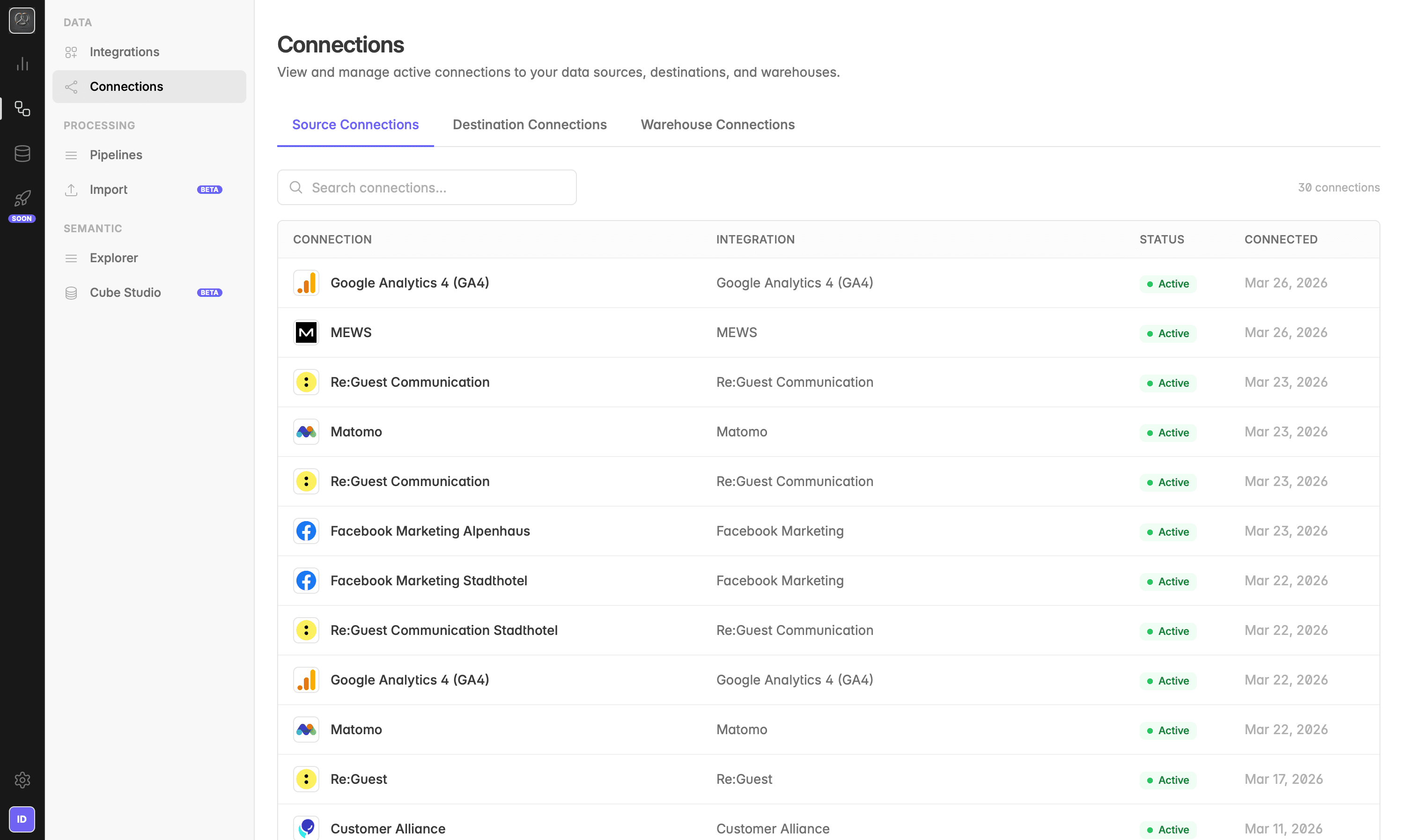
Source Connections list the systems that is already connected. Review status and credentials in one place.
What are Source Connections?
A Source Connection is an active, authenticated link between Indicate and an external system, for example Google Analytics, MEWS, Facebook Marketing, or Matomo. Each connection represents one integration slot in your workspace.
Source Connections are found under Engineering → Connections → Source Connections.
The three types of connections
The Connections area in Indicate is split into three tabs:
Source Connections
Systems that pull data into Indicate (e.g. Google Analytics 4, MEWS, Re:Guest, Matomo)
Destination Connections
Where processed data is sent (e.g. Main Indicate Destination)
Warehouse Connections
Where Indicate stores and syncs data (e.g. Main Indicate Lakehouse)
This article focuses on the Source Connections tab. For destinations and warehouses, see the linked articles.
The Source Connections overview
The Source connections page shows all systems currently connected to your Indicate Space.
The Source Connections tab shows a table with four columns:
Column | What it shows |
|---|---|
Connection | The name you gave this connection (e.g. "Facebook Marketing Mountainhotel") |
Integration | The integration type (e.g. "Facebook Marketing") |
Status | Whether the connection is active or misbehaving |
Connected | The date the connection was established |
How to manage a connection
View connection details
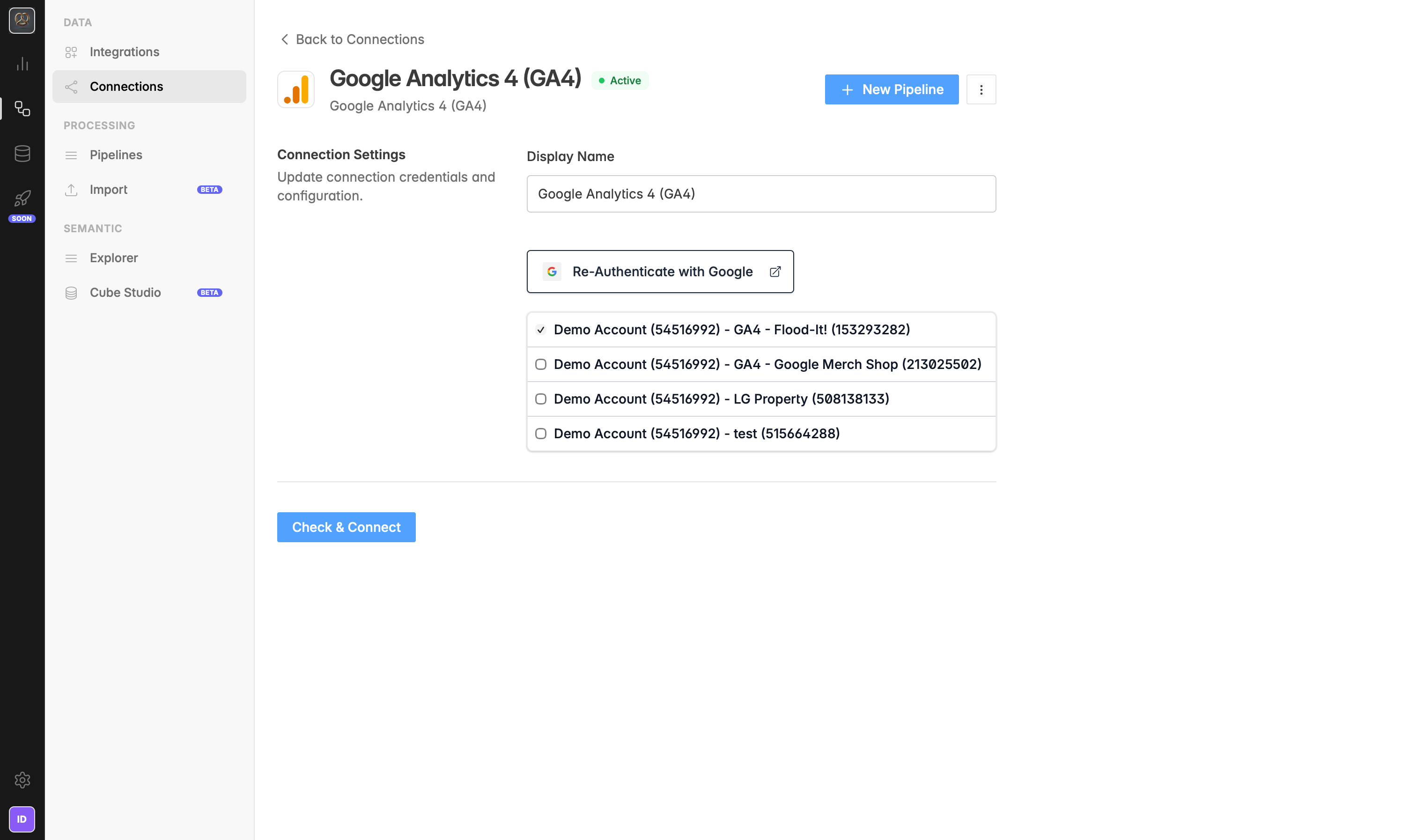
Click any connection name to open its detail view. From here you can see authentication info, rename the connection, or create a new pipeline.
Search connections
Use the
Search connections...field at the top to filter by name or integration type, useful if you have many connections.Add a new source
To add a new connection, go to
Engineering→Data→Integrationsand select the system you want to connect. See Add a data source or the full steps.
Connection status explained
Status | Meaning |
|---|---|
🟢 Active | The connection is live and data is syncing as scheduled |
🟠 Misbehaving | Authentication has expired or failed, reconnection needed |
Troubleshooting
A connection shows as disconnected or has an error.
This usually happens when an OAuth token has expired or an API key was rotated in the source system. Click the connection name and select Reconnect to re-authenticate.
I can't find a specific connection.
Use the
Search connections...field. If you have multiple connections of the same integration type (e.g. two Facebook Marketing accounts), check the connection name column, each should have a unique name so you can keep them apart.
I've reached my connection limit.
The connection count is shown in the top right of the page. To add more, upgrade your plan or contact [email protected].
I want to remove a connection.
See Delete a data source for the steps to safely remove a connection from your workspace.
Was this helpful?