
Team
Manage who has access to your space and what they can do. This article covers the three user types in Indicate, the member roles you can assign, how invitations work, and where to manage service accounts.
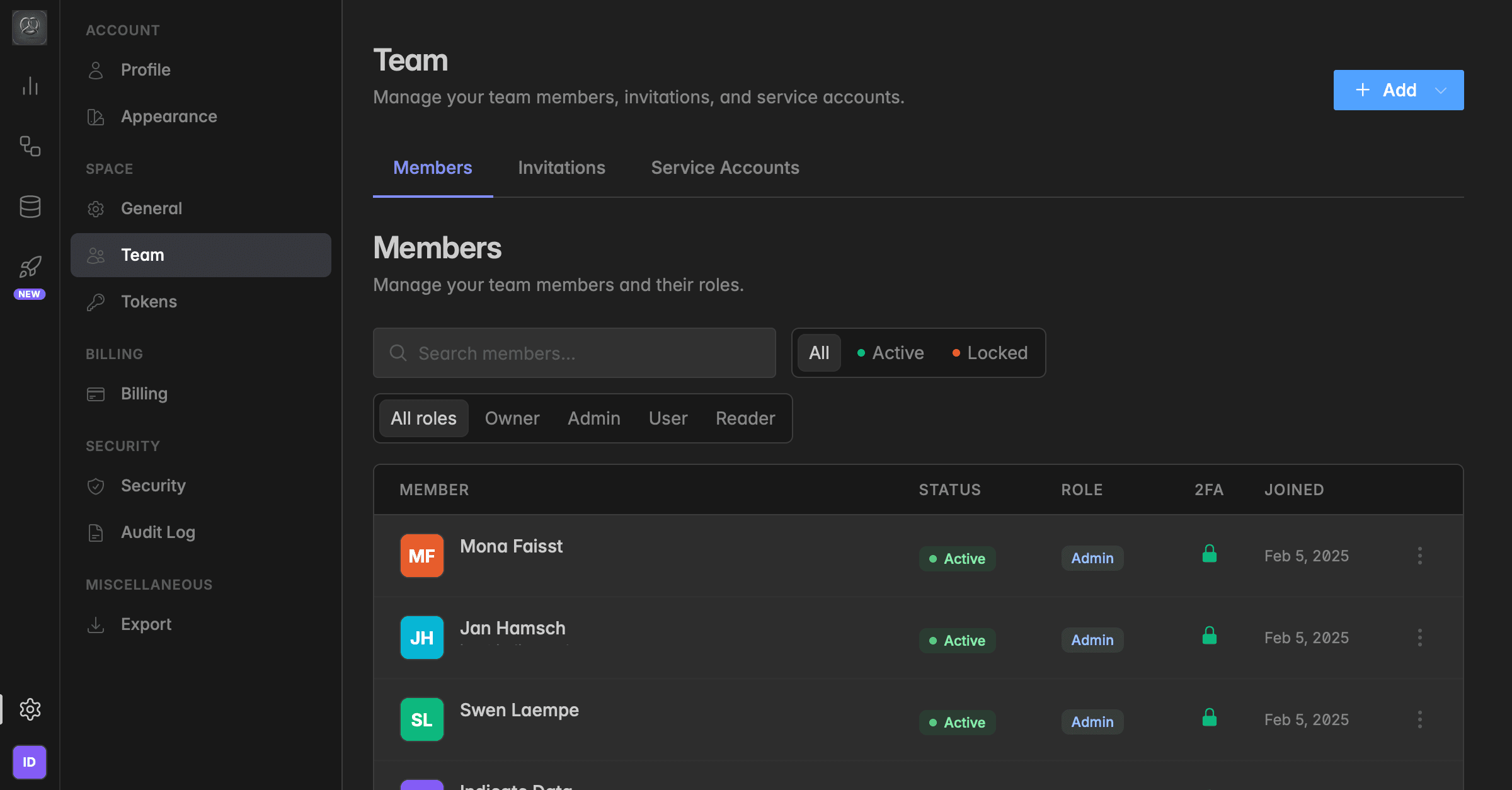
Team overview
The Team section is where you manage everyone and everything that can access your space, human team members, automated agents, and API integrations. It lives under Settings → Team and has three tabs:
Members
Active users in your space, their roles, and whether they have 2FA enabled.
Invitations
Pending and past invitations you've sent.
Service Accounts
Technical (non-human) accounts used for automated and API access.
User types
User types help you maintain clear oversight of who and what has access to your workspace, separate human from non-human access, and apply the right governance to each.
Indicate distinguishes between two user types (not to be confused with member roles below). The user type describes what kind of account it is; the role describes what it can do.
Member User
A standard account for a real person who signs in through the web app.
Service User
A virtual identity for integrations, bots, or automated processes. Service Users don't have a login, they exist as an identity that tokens can be paired with, so an automated system or integration can authenticate against Indicate independently of any individual team member. Using a Service User keeps the integration's access stable when people join or leave the space, and makes ownership of the integration explicit in the Audit Log.
Both user types are available on all plans.
Member Users live under Members. Service Users live under Service Accounts.
Users vs. tokens
Both user types can be paired with access tokens, Agent Tokens for external tools like Claude or n8n (all plans), and API Tokens for using Indicate as a data infrastructure layer (Enterprise only). The user is the identity the token is the credential that lets an external system authenticate on that user's behalf. One user can have multiple tokens; one token belongs to exactly one user.
Member roles
Every member is assigned one of four roles. The role controls what they can see, edit, and administer in your space.
Admin
Can manage settings, invite and remove users, configure connections and pipelines, and access all features.
User
Can build dashboards and widgets on top of existing metrics. Users cannot create custom metrics, add or modify data sources, edit metric definitions, or see the raw data in the Data Studio, they work with the governed metric layer only. Use this role for analysts, marketing, or operations people who consume data but don't manage the pipeline.
Reader
View-only access to dashboards, reports, and shared widgets. Cannot create or edit anything.
Changing a member's role.
You can change a member's role at any time. Open the
Settings→Team→Memberstab, click the⋯icon next to the member, chooseEdit member, select the new role, and clickSave changes. The change is recorded in the Audit Log.
Invitations
New members join your space by accepting an email invitation. When you invite someone:
They automatically receive an email with a link to join your space.
The link is valid for 7 days, after that, the invitation expires and must be resent.
You can resend or revoke any pending invitation at any time from the Invitations tab.
For the step-by-step flow, see → Invite a team member. To remove an existing member, see → Delete a team member.
Service Accounts
Service accounts are technical (non-human) accounts for automation, integrations, and API access. They are not tied to a person and don't have an email or login, instead, they're paired with an API token that authenticates external systems.
Typical use cases:
Connecting Indicate to an AI assistant via MCP (=chat with your data).
Pulling metrics into your software (integrate us as a technology).
Running scheduled scripts or data exports.
Manage them under Settings → Team → Service Accounts. For step-by-step instructions, see → Create a service account.
Only Owners and Admins can invite members, change invitations, and create or delete service accounts. All changes are recorded in the Audit Log under the `Users` and `Service Users` namespaces.
Was this helpful?