
Invite a team member
Invite new members to your Indicate space and assign them a role. This article walks you through the invitation flow, how to pick the right role, what happens after you send, and how to manage pending invitations.
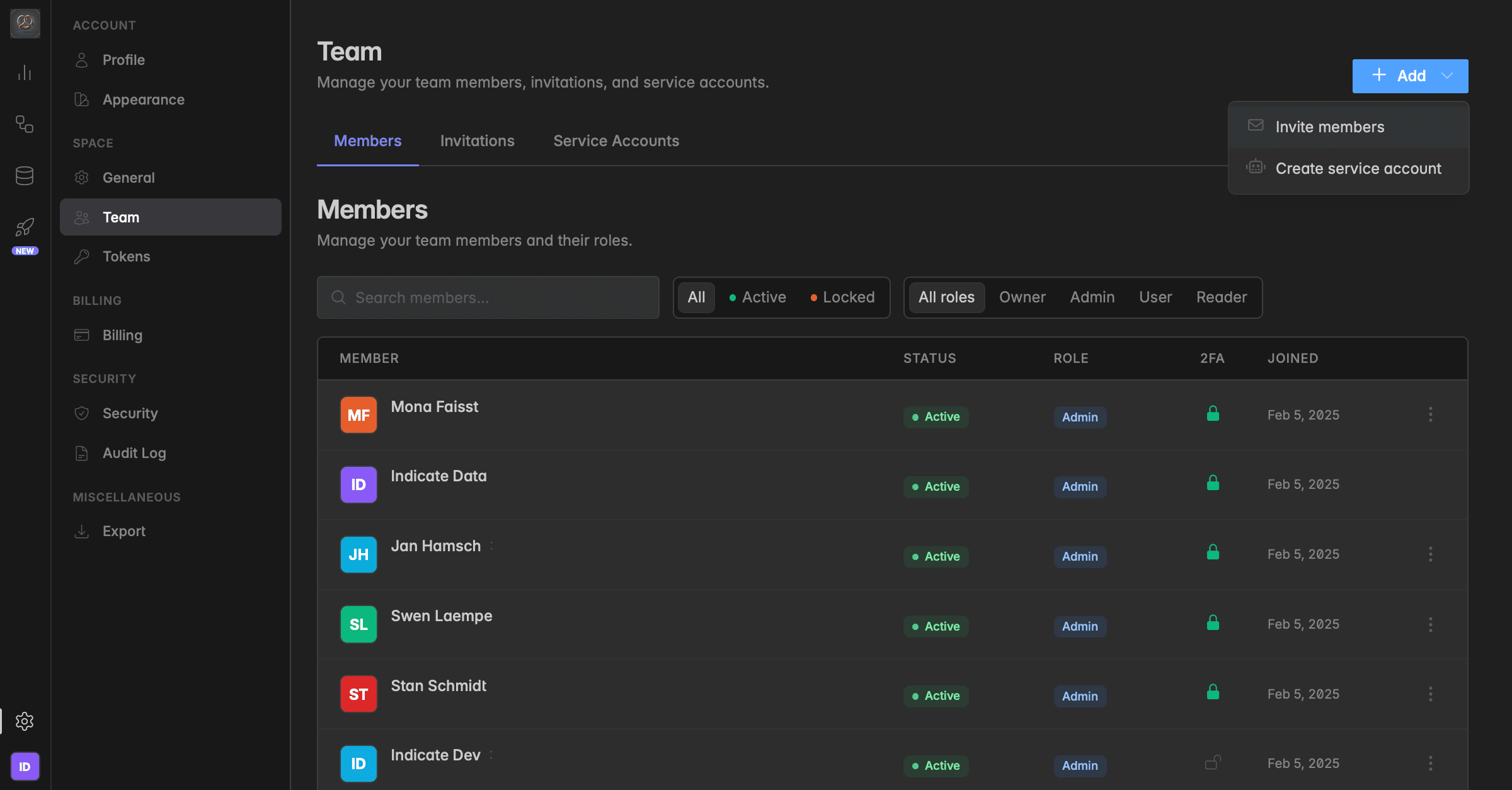
Before you invite
A quick check before sending the invitation:
Pick the right role. Roles control what the new member can see and do — Owner, Admin, User, or Reader. Roles can be changed later from the Members tab, but it's still cleaner to assign the right one from the start. See → Team for role definitions.
Use the person's work email. The invitation is tied to the email address you enter. If you invite them on a personal address, they can't switch to their work account later without being re-invited.
Bulk invites are supported. If you're onboarding several people at once, use the
+ Add anotheroption in the invite dialog to send multiple invitations in one go.
How to invite a team member
Open Settings by clicking the gear icon in the bottom-left corner.
Go to
Settings→Team.Click the
+ Addbutton in the top right and selectInvite members.Enter the email address of the person you want to invite.
Select their role: Owner, Admin, User, or Reader.
(Optional) Add a personal message, it will be included in the invitation email and helps the recipient recognise the invite as legitimate.
To invite more people in the same flow, click
+ Add anotherand repeat steps 4–6.Click
Send invitations.
The invitation expires after 7 days. If the person doesn't accept the invitation within 7 days, the link stops working. You can resend the invitation from the
Invitationstab at any time, see below.
What happens after you send
Once the invitation is sent:
The recipient receives an email with a link to join your space and, if you added one, your personal message.
The invitation appears under
Settings→Team→Invitationswith status Pending.When the recipient accepts, their account moves to the
Memberstab with the role you assigned. They appear as Active once they've signed in for the first time.The invitation moves from Pending to Past invitations once it has been accepted, revoked, or expired. You can review past invitations on the same Invitations tab to see who joined when, who was revoked, and who never responded.
The invitation and its acceptance are recorded in the Audit Log under the
Usersnamespace.
Managing pending invitations
To manage invitations you've already sent, go to Settings → Team → Invitations. From the ⋮ menu next to any pending invitation you can:
Edit invitation to change the users role.
Resend the invitation if the original email was lost, missed, or expired.
Revoke the invitation if you no longer want the person to have access. The link stops working immediately.
Only Owners and Admins can invite team members or manage invitations. Users and Readers don't see the invite option.
Was this helpful?