
Favorite or Bookmark a dashboard
Pin a dashboard so it is easy to find: bookmark it for the whole space, or favorite it just for yourself.
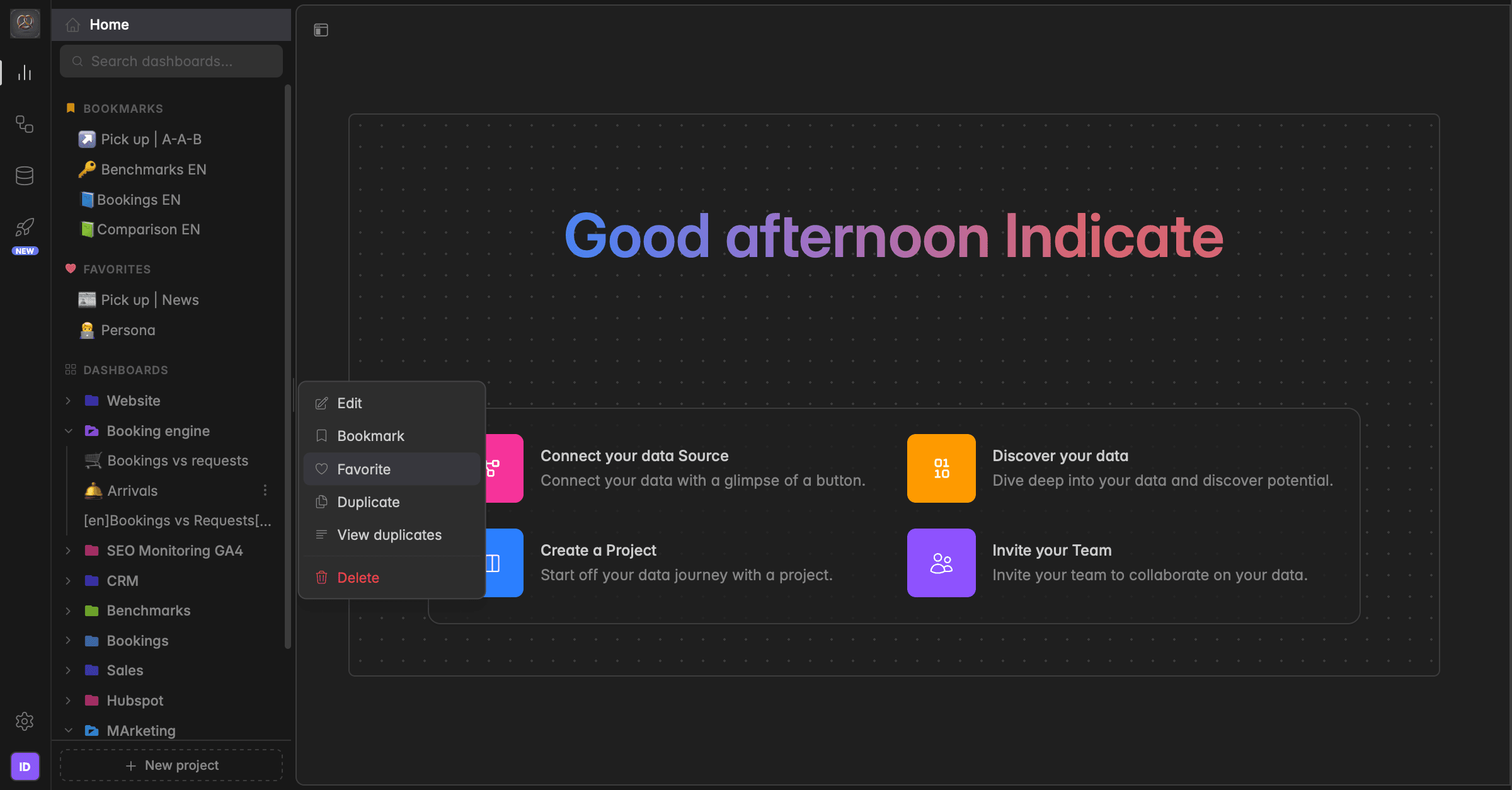
What is the difference between a bookmark and a favorite?
Both bookmarks and favorites pin a dashboard to the top of your left sidebar so you can reach it in one click. The difference is who sees it.
A bookmark is shared. It appears under the BOOKMARKS section for everyone in your space, so the whole team sees the same pinned dashboards. Use bookmarks for the dashboards your team relies on.
A favorite is personal. It appears under the FAVORITES section only in your own sidebar, marked with a heart icon. Use favorites for the dashboards you want quick access to, without changing anyone else's sidebar.
Favorite vs Bookmark
Favorite is only visible to you. It affects your own sidebar.
Bookmark is visible to everyone in the space.
How to favorite a dashboard
There are two ways to favorise your Dashboards.
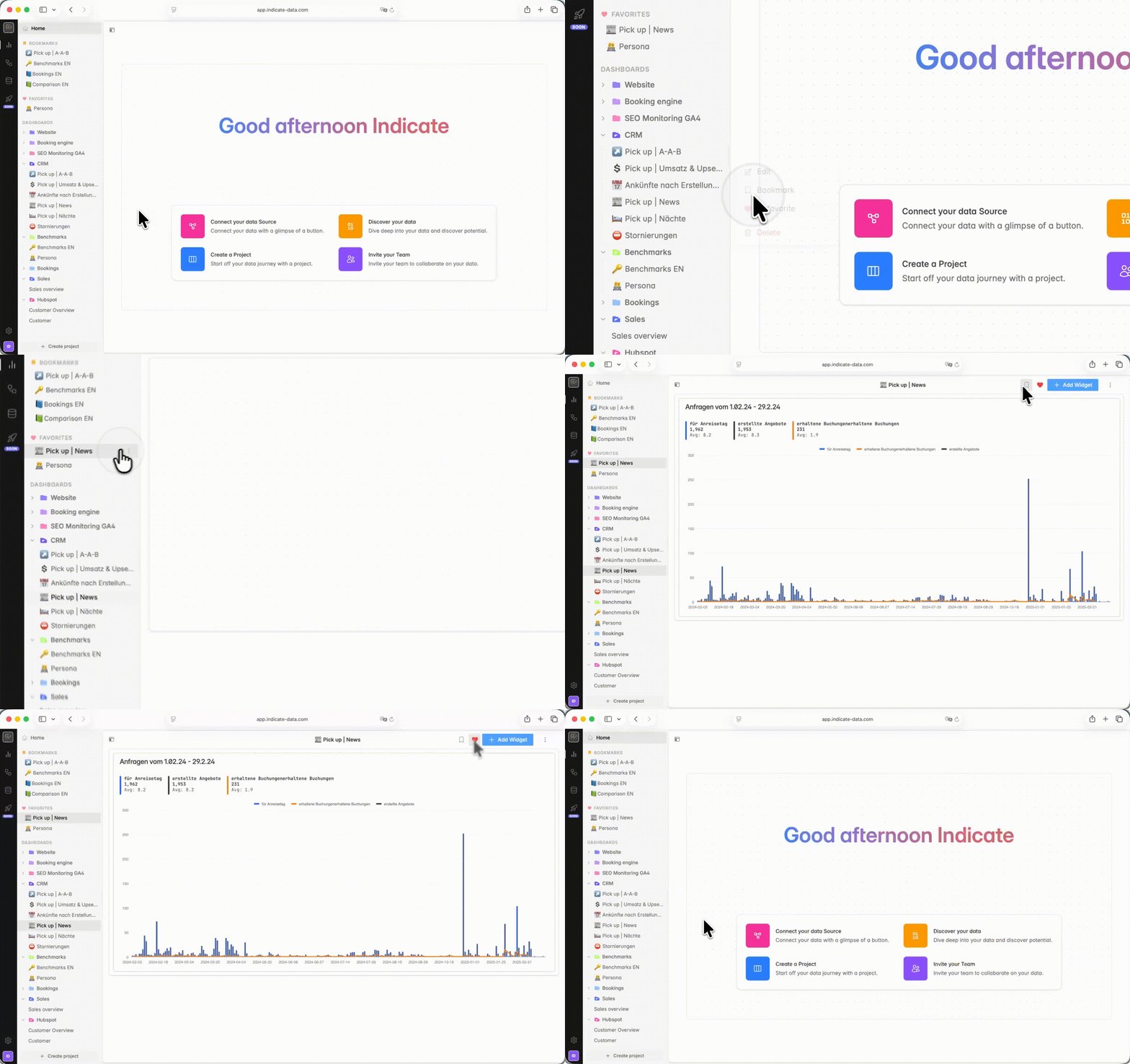
Option 1:
Go to the dashboard name you want to mark as a favorite.
Click the
⋮icon next to the Dashboard name.Select
Favoritefrom the menu. The dashboard now appears under FAVORITES in the left sidebar.
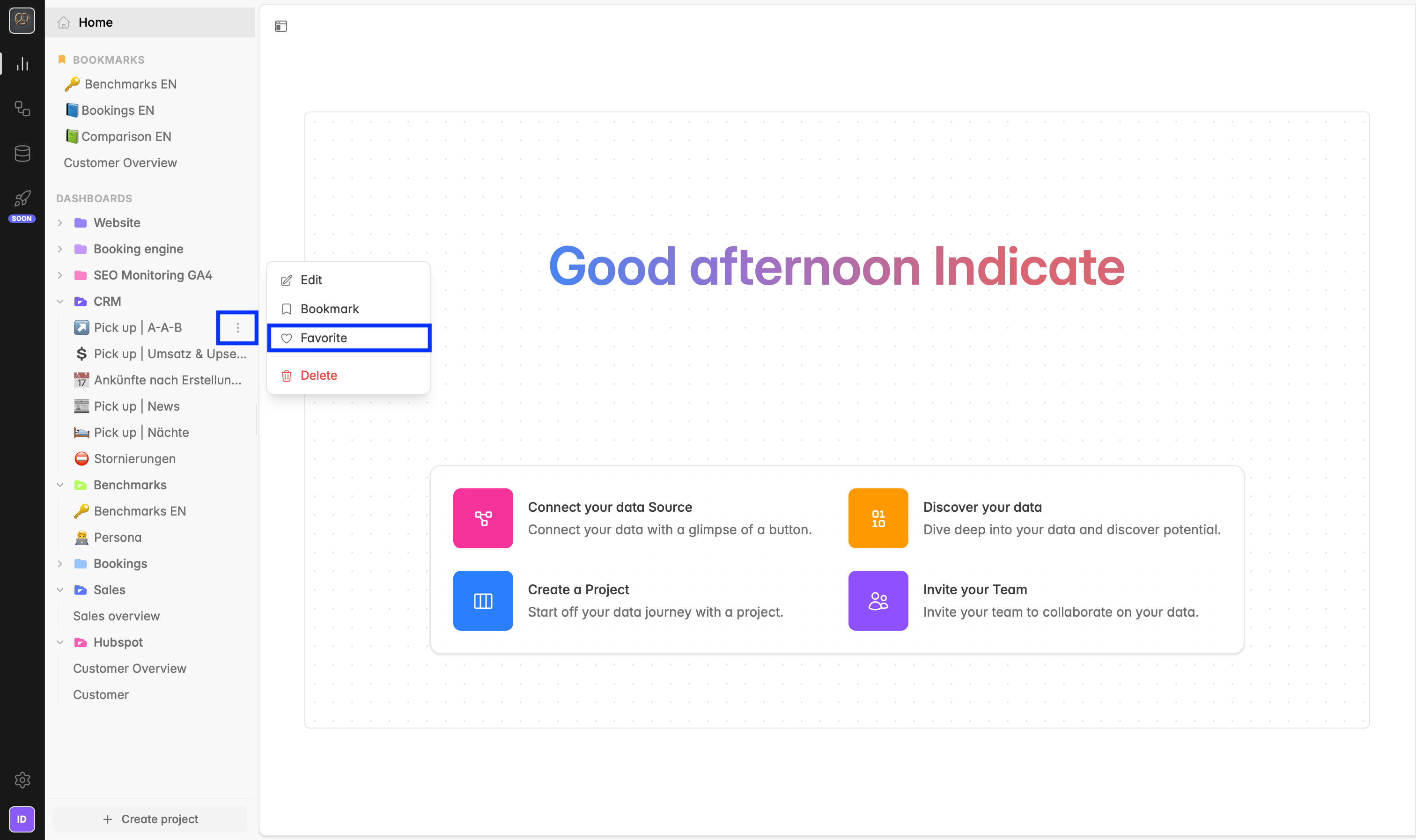
Option 2:
You can also favorite a dashboard by clicking the heart icon :heart-solid: in the top-right corner, next to Bookmark and + Add Widget .
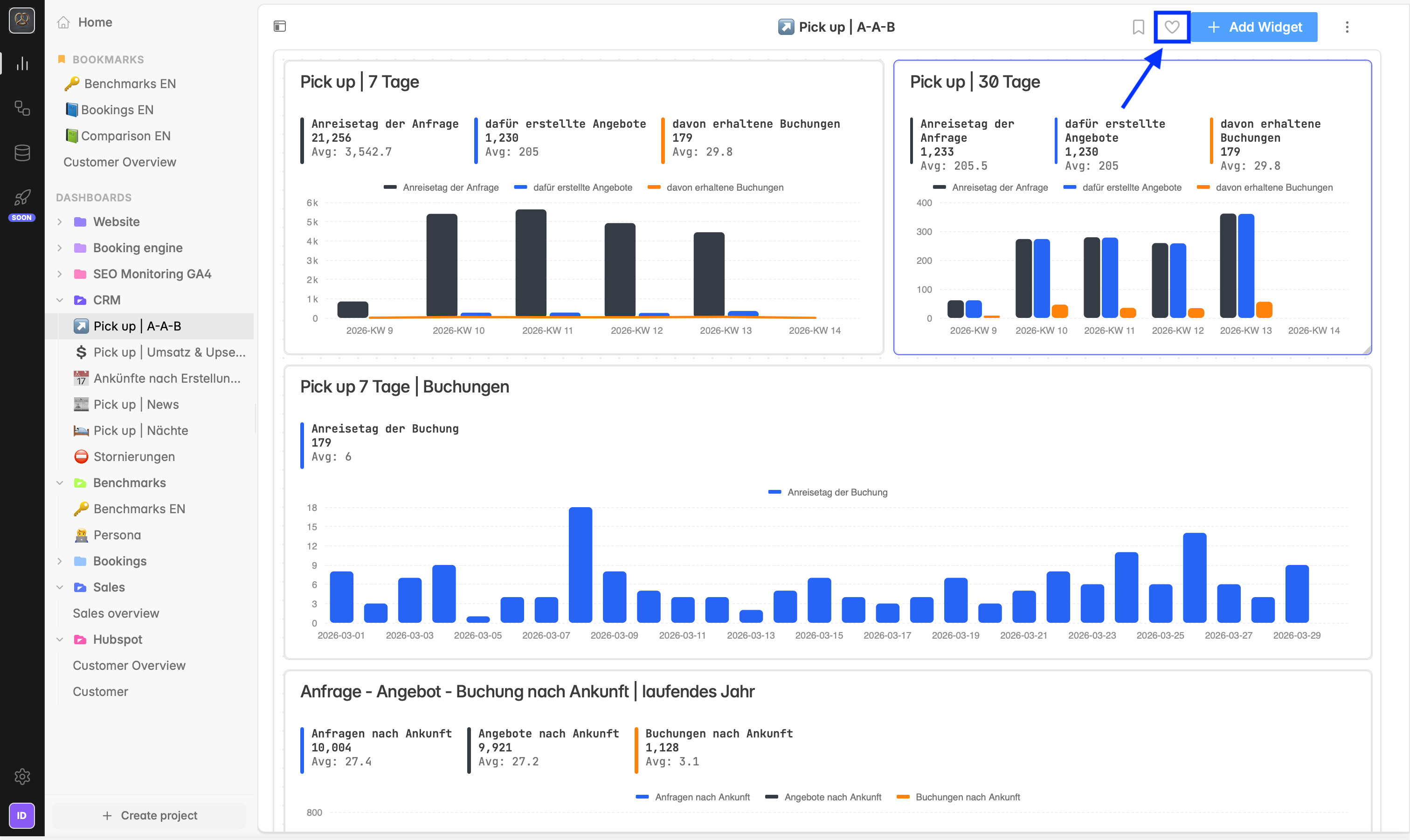
How to unfavorite a dashboard
Unfavoriting works the same way as favoriting.
👉 There are two ways to unfavorite your dashboards.
Option 1:
Go to the dashboard name you want to remove from Favorites.
Click the
⋮icon next to the Dashboard name.Select
Unfavoritefrom the menu. The dashboard is removed from FAVORITES in the left sidebar.
Option 2:
Click the heart icon :heart-solid: again in the top-right corner to unfavorite it.
How do I bookmark a dashboard?
There are two ways to bookmark a dashboard.
Option 1:
Go to the dashboard you want to bookmark.
Click the
⋮icon next to the name of the dashboard.Select Bookmark from the menu. The dashboard now appears under BOOKMARKS in the left sidebar.
Option 2:
Open the Dashboard you want to bookmark.
Click the bookmark icon in the top-right corner, next to Favorite and + Add Widget.
How do I unbookmark a dashboard?
Unbookmarking works the same way as bookmarking. There are two ways to do it.
Option 1:
Go to the dashboard you want to remove from Bookmarks.
Click the
⋮icon next to the dashboard name.Select Unbookmark from the menu. The dashboard is removed from BOOKMARKS in the left sidebar.
Option 2:
Click the bookmark icon again in the top-right corner to unbookmark it.
Was this helpful?