
Create a project
A project is the top-level container in Indicate. It groups your dashboards into a logical folder so your team can navigate, analyze, and share data around a common topic or goal.
What is a project?
In Indicate, dashboards live inside projects. A project is like a folder that groups all the dashboards belonging to the same topic, department, or goal. You can have as many projects as you need, and each one appears in the left sidebar under Analytics.
Keep things tidy: group dashboards by topic, for example Marketing, Sales, or Bookings.
Keep things clean: you can collapse projects so only the project names are visible, then expand them again anytime to show the dashboards inside.
Navigate quickly: every project and its dashboards are visible in the left sidebar at all times.
Stay flexible: you can create, rename, or delete projects at any time without affecting your data.
Projects and dashboards are shared across your workspace, so everyone in the same space sees the same list.
How to create a project
Go to
AnalyticsIn the left sidebar, click
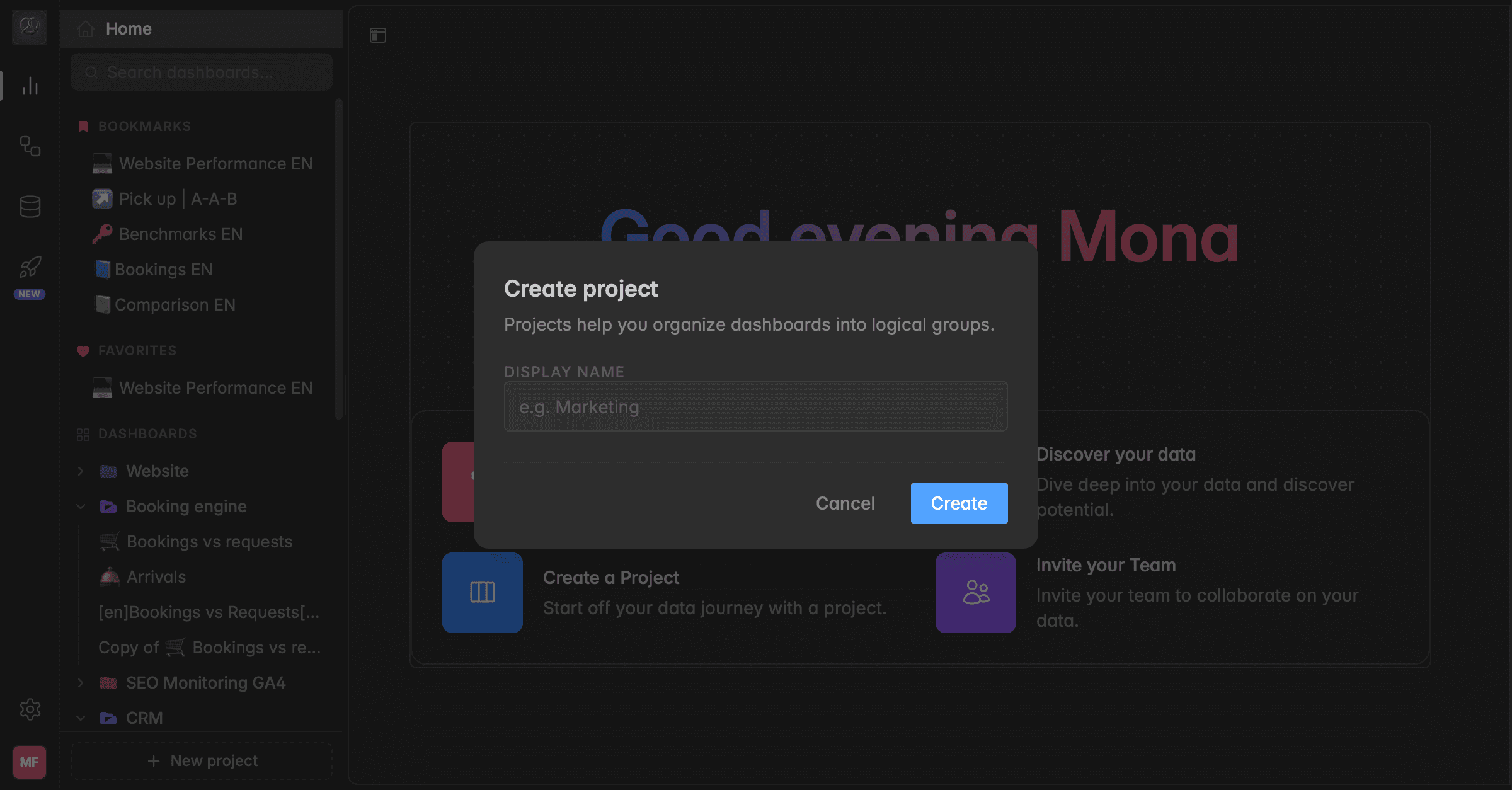
+ New projectat the bottom.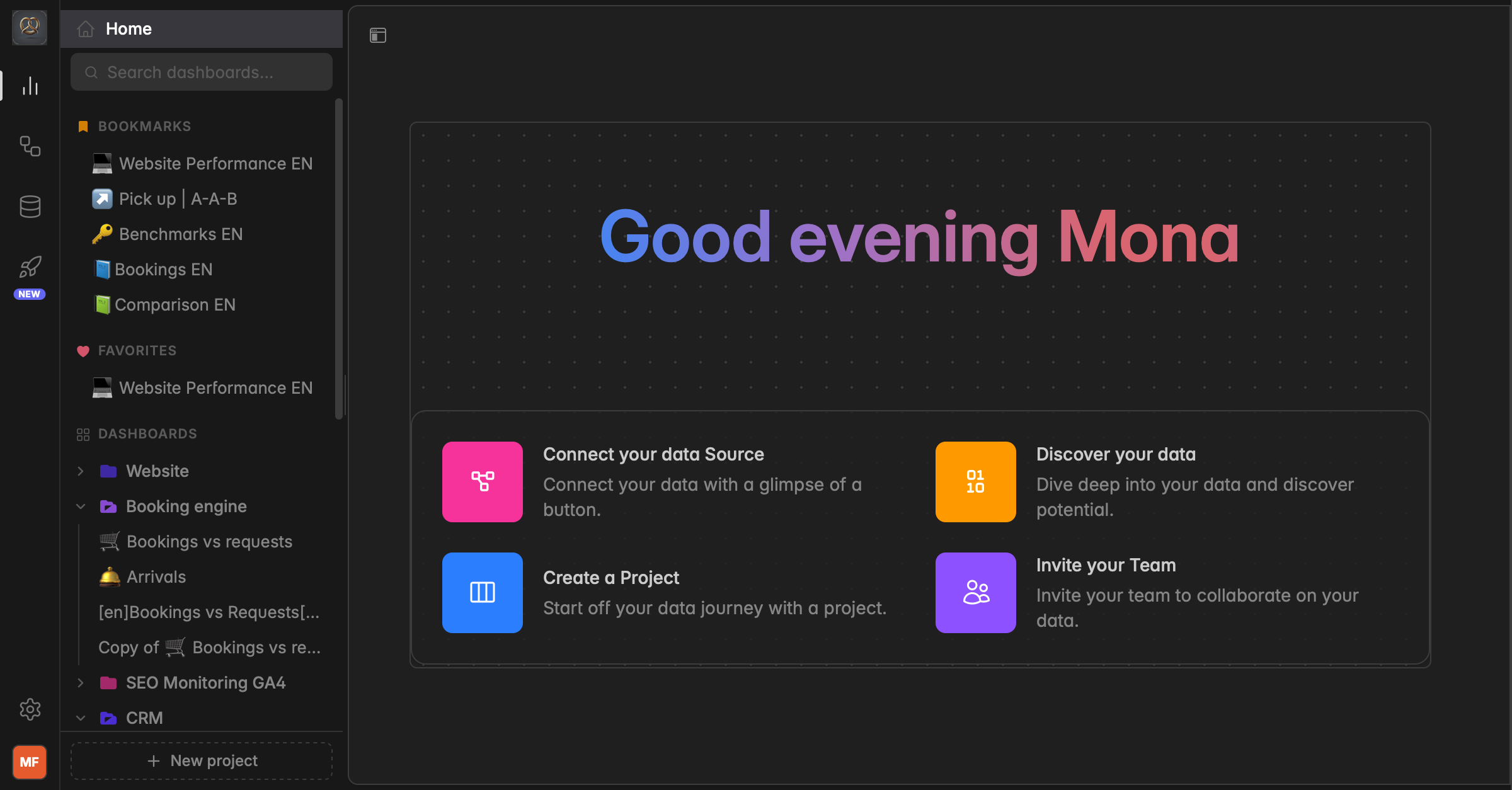
Enter a Display Name for your project, for example “Marketing” or “Sales”.
Click
Create. Your new project now appears in the left sidebar underDashboardsand is ready to hold your dashboards.
Was this helpful?